Another visual experiment working witt block pattern, the accompanying story board continues to pop up with a typical start screen, common to classic arcade machines. This is simply the coloured background, I want to create a background with continuously moving pixels, opposed to individual blocks of pixels as shown here. Although it isn't exactly what I have in mind, the effect does mimic the kind of simple motion graphic effects used in early video game eras.
Showing posts with label Digital. Show all posts
Showing posts with label Digital. Show all posts
30.1.12
Gl!†Hc
A continuation of the last post - after experimenting with the last technique, I came across another way of manipulating images to achieve a slightly more radical transition. Opposed to fully abstracting any file opened, this technique heavily abstracts the image used but looks a lot more 'glitchy' rather than just thousands of pixels.

Using .bmp or .tiff files (even .jpeg or .gif changed to these file types) open the image up in any text editor and quite randomly abstract the coding. The outcome is usually very unexpected, not really knowing how ones actions are effecting the image, but after a few attempts its evident what parts of the file rework general areas of the image.

So I chose to work with an image I've previously blogged, a simple arcade room, and see what effects I could create through this style of manipulation...


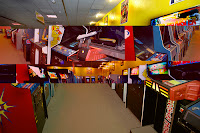
They're not as mishaped and distorted as I'd have liked, although they were only very simple expriments, changing chunks of the coding around. I intend to experiment further and introduce multiple versions into After Effects.

Using .bmp or .tiff files (even .jpeg or .gif changed to these file types) open the image up in any text editor and quite randomly abstract the coding. The outcome is usually very unexpected, not really knowing how ones actions are effecting the image, but after a few attempts its evident what parts of the file rework general areas of the image.

So I chose to work with an image I've previously blogged, a simple arcade room, and see what effects I could create through this style of manipulation...


They're not as mishaped and distorted as I'd have liked, although they were only very simple expriments, changing chunks of the coding around. I intend to experiment further and introduce multiple versions into After Effects.
17.1.12
AE 4
Creating type in After Effects, laying text down works on the same basis as illustrator;
-Click to type anywhere / drag a textbox and type within it.
Creating text like this allows it to be manipulated throughout working on a project
-To format text, there is a character pallete on the right hand side, contains standard options.
The texts layer has an anchor point in the corner of the text box opposed to the dead centre. To change the anchor point, it's a simple case of pressing 'Y' and selecting the anchor points new position.
Another way is by changing the values of the Anchor point selection, this is more complicated as it moves the layer at the same time as the point itself, having to put the layer back in place afterwards.

The source text property allows us to change the content and/or formatting of the text over time.

To the right of the text properties, there is an Animate: > options to animate any properties that appear in the menu.

Source text - Changing the format of the text
More Options - specifying the properties of the text at given points.
Path Options - Selecting the layer, using the pen tool to draw a path...

-Click to type anywhere / drag a textbox and type within it.
Creating text like this allows it to be manipulated throughout working on a project
-To format text, there is a character pallete on the right hand side, contains standard options.
The texts layer has an anchor point in the corner of the text box opposed to the dead centre. To change the anchor point, it's a simple case of pressing 'Y' and selecting the anchor points new position.
Another way is by changing the values of the Anchor point selection, this is more complicated as it moves the layer at the same time as the point itself, having to put the layer back in place afterwards.

The source text property allows us to change the content and/or formatting of the text over time.

To the right of the text properties, there is an Animate: > options to animate any properties that appear in the menu.

Source text - Changing the format of the text
More Options - specifying the properties of the text at given points.
Path Options - Selecting the layer, using the pen tool to draw a path...

19.12.11
Void
I reopened one of my first experiments with after effects to find that I have infact payed nowhere near enough ettention to collating my files and keeping them organized. That said it was a result of cleaning up my desktop and trying to be more organzied that this very problem occured.
So basically AE couldnt find the file that I was originally working with, and in its place presented me with some coloured blocks, which although not what i was looking for quite appealed to me...


Instantly reminding me of the BBC screen they used to run at stupid o'clock in the morning, which turns out to be called a 'test card'. I used to be so intrigued by it as a child, almost slightly scared by the little girl and probably more so the wierd little clown...

A random post this may be, but it really got me thinking about retro graphics and how this rather garish auray of colours somehow have instant reminicent qualities, not just to me but to others my age and older im sure.
So basically AE couldnt find the file that I was originally working with, and in its place presented me with some coloured blocks, which although not what i was looking for quite appealed to me...


Instantly reminding me of the BBC screen they used to run at stupid o'clock in the morning, which turns out to be called a 'test card'. I used to be so intrigued by it as a child, almost slightly scared by the little girl and probably more so the wierd little clown...

A random post this may be, but it really got me thinking about retro graphics and how this rather garish auray of colours somehow have instant reminicent qualities, not just to me but to others my age and older im sure.
8.12.11
Abstraction
Whilst trying to make the most out of an A4 piece of paper, arranging the larger glyhps in order to fit them all on the page, I came across a potential idea to explore. Working with the word 'Collide', it got me thinking about how the glyphs could be arranged/sequenced in a more abstract way, but still eventually delivering the word collide...
 Just leaving the larger letters making up the word 'colldie' - lower and uppercase, I wouldn't say the left hand example reads extremely well, whilst the right hand side seems a bit more legible, although that could easily just be from an overload of the word in my head. I want to explore this idea mocking up some still designs, looking for abstract but still legible glyph arrangements.

 Just leaving the larger letters making up the word 'colldie' - lower and uppercase, I wouldn't say the left hand example reads extremely well, whilst the right hand side seems a bit more legible, although that could easily just be from an overload of the word in my head. I want to explore this idea mocking up some still designs, looking for abstract but still legible glyph arrangements.
6.12.11
Commence
After today's sessions from Fred and Mike, it got me really enthused to start getting myself fully immersed in a motion orientated mindset. Learning the more technical side of After Effects, although at this stage still primitive, is such an eye opener of the capabilities, its put the complexities (in both design and execution) of even the most simply appearing videos into a lot more context.
Working with the word collide and based on one of my sequences, I started experimenting with the new skills acquired from the session. It's naturally been easier to experiment with depth and perspective more expressively than hand rendering, but without the idea process before
Working with the word collide and based on one of my sequences, I started experimenting with the new skills acquired from the session. It's naturally been easier to experiment with depth and perspective more expressively than hand rendering, but without the idea process before
After Effects 2/6
[RECAP]
Project window - all the files used withing the project - still images, audio or video.
Time line - Where assets are arranged in terms of time, deciding what happens at a particular moment in time.
Composition window - Where we see the elements of our movie playing back, arranging elements of the design/spatially
Composition - Every project must contain at least 1 composition,
PAL - 1050 x 576 PIXELS - Specified size by the PAL preset
[TRANSFORM SHORTCUTS]
A - Anchor Point
P - Position
R - Rotation
S - Scale
T - Opacity
PHOTOSHOP for AE
RGB // PIXELS // 72DPI
New>Presets>PAL D1/DV WSP (Widescreen Square Pixel)

Action Safe Zone - Is a legacy feature form when TV's had a curved face, it's an area to ensure all the desired imagery/content is visible.
Title Safe Zone - A guide to ensure all text displayed is delivered as desired.
To turn these guides on in After Effects its a simple case of using the 3rd button along at the bottom in the Composition window...

When working in photoshop, it is imperative to consider scale first, enlarging in After Effects will cause bad pixelated image. Using the Video preset allows us to have a clear idea of scale before importing.
File>Import>IMPORT FILE AS FOOTAGE
When importing, we're not importing, we're adding links to the document, keeping all elements in one folder, much like InDesign.
When adding something to the composition, there are various ways to do it. Simply dragging on onto the workspace is okay, however dragging to the time line places the item exactly in the middle of the workspace, a helpful little tip/time saver.

A simple way to animate text, working in layers in Photoshop, these layers can be transported into AE and work in the same way. Each part of the image that is animated should have its own layer in order to be able to manipulate it correctly.
*When importing layered art work - Import as a composition
In the project window, adding a layered file adds a new composition and a file called '______ Layers' - we will rarely use these files, instead we will use the composition.
*ANY AFTER EFFECTS PROJECT CAN CONTAIN MULTIPLE COMPOSITIONS*
Adding a position key-frame to all layers by selecting all layers, clicking the key-frame button on one transformation - adding the point to all layers...


When importing layers, it is possible to have each and every layer fixed around 1 anchor point, all the text/image will rotate around this point. The is an option when importing to 'retain layer size' - This gives each layer its own anchor point, in turn allowing each glyph/image to be edited with more precision.

Working from illustrator, the principles are very much the same. Using a preset document set up for immediate use with video/film.

Layer switch's - These allow you to turn features of a layer on/off, one is very relevant for working with illustrator files
Any layers one has finished with are able to be turned 'shy', basically removing them from the time line but still appearing in the composition window.
Quality switch - Forward slash's indicate the quality is at a high level, its like changing the resolution but it's able to be changed on a layer by layer basis

*COLLECT FILES* - is a handy little way of collating all the files used in a project if one hasn't been particularly organised throughout the production process.

Project window - all the files used withing the project - still images, audio or video.
Time line - Where assets are arranged in terms of time, deciding what happens at a particular moment in time.
Composition window - Where we see the elements of our movie playing back, arranging elements of the design/spatially
Composition - Every project must contain at least 1 composition,
PAL - 1050 x 576 PIXELS - Specified size by the PAL preset
[TRANSFORM SHORTCUTS]
A - Anchor Point
P - Position
R - Rotation
S - Scale
T - Opacity
PHOTOSHOP for AE
RGB // PIXELS // 72DPI
New>Presets>PAL D1/DV WSP (Widescreen Square Pixel)

Action Safe Zone - Is a legacy feature form when TV's had a curved face, it's an area to ensure all the desired imagery/content is visible.
Title Safe Zone - A guide to ensure all text displayed is delivered as desired.
To turn these guides on in After Effects its a simple case of using the 3rd button along at the bottom in the Composition window...

When working in photoshop, it is imperative to consider scale first, enlarging in After Effects will cause bad pixelated image. Using the Video preset allows us to have a clear idea of scale before importing.
File>Import>IMPORT FILE AS FOOTAGE
When importing, we're not importing, we're adding links to the document, keeping all elements in one folder, much like InDesign.
When adding something to the composition, there are various ways to do it. Simply dragging on onto the workspace is okay, however dragging to the time line places the item exactly in the middle of the workspace, a helpful little tip/time saver.

A simple way to animate text, working in layers in Photoshop, these layers can be transported into AE and work in the same way. Each part of the image that is animated should have its own layer in order to be able to manipulate it correctly.
*When importing layered art work - Import as a composition
In the project window, adding a layered file adds a new composition and a file called '______ Layers' - we will rarely use these files, instead we will use the composition.
*ANY AFTER EFFECTS PROJECT CAN CONTAIN MULTIPLE COMPOSITIONS*
Adding a position key-frame to all layers by selecting all layers, clicking the key-frame button on one transformation - adding the point to all layers...


When importing layers, it is possible to have each and every layer fixed around 1 anchor point, all the text/image will rotate around this point. The is an option when importing to 'retain layer size' - This gives each layer its own anchor point, in turn allowing each glyph/image to be edited with more precision.

Working from illustrator, the principles are very much the same. Using a preset document set up for immediate use with video/film.

Layer switch's - These allow you to turn features of a layer on/off, one is very relevant for working with illustrator files
Any layers one has finished with are able to be turned 'shy', basically removing them from the time line but still appearing in the composition window.
Quality switch - Forward slash's indicate the quality is at a high level, its like changing the resolution but it's able to be changed on a layer by layer basis

*COLLECT FILES* - is a handy little way of collating all the files used in a project if one hasn't been particularly organised throughout the production process.

3.12.11
25 Frames
25 frames at fixed intervals throughout a piece of kinetic typography of our choice. I chose this lengthy-ish (228 seconds) motion graphic focusing on Hangul, a korean language, although it is very much an abstraction of type and letter form.
It worked out that I'd have to take a screen shot every 9 seconds, almost totalling the exact time of the video - 225 (give or take 3 seconds)
It worked out that I'd have to take a screen shot every 9 seconds, almost totalling the exact time of the video - 225 (give or take 3 seconds)
29.11.11
AE1/6 - Experiments
After our induction to Adobe After Effects, we set about using some of the basic functions the software has to offer. Using simple shape and colour we explored; Anchor points, Position, Scale, Rotation and Opacity. I ended up with a few experiments, the first ending up in absolute un-renderable chaos through being slightly over ambitious, but I've attached the two comprehensible experiments that show use of the aforementioned attributes...
After effects 1/6
Active windows are highlighted with a yellow perimeter.
Project window (Top left) - where things live; photoshop, illustrator, sound, image documents
Time line (Bottom panel) - where layers live
Window>Workspace>Reset to standard - after working on a project, messing about with panels, its an easy way to revert back to default.
Opposed to going File>New, to create a new project is Composition>New (cmd+N)
*ALWAYS NAME THINGS*
Presets, various presets. Different regions have different settings, UK standard is PAL while the US uses NTSC as their preferred.
PAL = 25 FPS
PAL D1/DV (digital video) Widescreen Square pixels. (selecting this option automatically fills in other fields)
Can always change the duration throughout project >> HRS:MINS:SECS:FRAMES
Background colour - When dealing with light, black is the absence of colour, opposed to print moving image considers black as blank instead of white.
When creating a new layer, it comes up as the same size as the format of the project, there are different ways to change this, click and drag from the corner. A better way is to click on the yellow box in the menu to respecify the exact dimensions.
A long red block appears after creating a new layer/shape, and extends for the whole duration. When you have a vector file it is possible to simply drag and drop to get things in the project.
To change the amount of time the layer is visible, it is a case of adjusting the red bar in the time line. The time indicator/play head is a frame by frame pin point to specify exactly what frame is being modified.
A layer can only contain one thing at a time.
Back to the layer menu. Create>New>Solid (cmd+Y). Again creates a new layer filling the entire duration of the specified time line.
3 Different playback options. The first is through the Playhead, for a manual playback. The second is by hitting the space key, it works as a play and pause button, sending the red line off at a real time speed down the time line (if project is simple) - the space bar only plays back a limited preview, too many layers can cause the playback to be slow and less accurate. The third way is the preview bar, allows a real time playback regardless of the complexity, better for more complex stuff.
If the video starts to play back slow, we can change this setting to allow the playback to become more responsive.
In the timeline, there is a small slider allowing us to zoom in, working frame by frame for more detailed work.
Using the ~ key, allows the currently selected working panel to become full screen and a quickly toggle between the two.
Only ever saving in project files, all the other media is linked.
Key frames, are specific frames with data/shape/image, the frames in between these key frames can be interpreted by the software. For example A key frame with a square on and a key frame with a circle on, there could be 30 frames in between where the software will automatically merge the two together over equal increments.

20's - Collide
WORDS
Crash/Hit/Slam/Bump/Encounter/Wham/Beat/Bang/Clatter/Crunch/Conflict/Disagree/Shatter/Together/Unite/Smash/Strike/Jolt/Plow/Pile-up/Conflict
OBJECTS
Sword/Car/Joust/Kaleidoscope/Atom/Fist/Marbles/Boules/Pool Balls/Magnets/Glue/Personalities/Drum Sticks/Rain/Water Balloon/Bullet/Door/
SITUATIONS
Crashing a car
Playing pool
Experimenting with chemicals
Two football players collided on the field
Playing conkers
Fighting
Tripping over
Clapping
War
Dropping something
Striking a match
Meetings
Relationships
Sea hitting the coast
Blood cells colliding
Arguing with friends
DEFINITIONS
To strike one another
Forceful impact
Come into violent contact
To clash; conflict
To cause to collide
To strike together
To conflict in attitude, opinion
To Disagree
To meet in opposition
Be incompatible; "These colours clash"
Undergo damage or destruction on impact
To cause to make a loud noise
IMAGES
TYPEFACES
ABC VERSION 2 / AMPUTA / BANCO STD / BRAGGADOCIO / CALCITE BOLD / CENTURY GOTH BOLD ITALIC/ CHAOS MATH / CHARLEMANGE / COLDI / DALLE ITALIC/ DS NARROW / ENFER / FACET BLACK / FRANCHISE / GOUDY TEXT MT STD / KITCHEN POLICE /STIGMATE / SYNCHRO LET /
Crash/Hit/Slam/Bump/Encounter/Wham/Beat/Bang/Clatter/Crunch/Conflict/Disagree/Shatter/Together/Unite/Smash/Strike/Jolt/Plow/Pile-up/Conflict
OBJECTS
Sword/Car/Joust/Kaleidoscope/Atom/Fist/Marbles/Boules/Pool Balls/Magnets/Glue/Personalities/Drum Sticks/Rain/Water Balloon/Bullet/Door/
SITUATIONS
Crashing a car
Playing pool
Experimenting with chemicals
Two football players collided on the field
Playing conkers
Fighting
Tripping over
Clapping
War
Dropping something
Striking a match
Meetings
Relationships
Sea hitting the coast
Blood cells colliding
Arguing with friends
DEFINITIONS
To strike one another
Forceful impact
Come into violent contact
To clash; conflict
To cause to collide
To strike together
To conflict in attitude, opinion
To Disagree
To meet in opposition
Be incompatible; "These colours clash"
Undergo damage or destruction on impact
To cause to make a loud noise
IMAGES
TYPEFACES
ABC VERSION 2 / AMPUTA / BANCO STD / BRAGGADOCIO / CALCITE BOLD / CENTURY GOTH BOLD ITALIC/ CHAOS MATH / CHARLEMANGE / COLDI / DALLE ITALIC/ DS NARROW / ENFER / FACET BLACK / FRANCHISE / GOUDY TEXT MT STD / KITCHEN POLICE /STIGMATE / SYNCHRO LET /
20's - Float
WORDS
Buoyant/Sail/Bob/Rest/Skim/Slide/Swim/Water/Flow/Skim/Glide/Drift/Hang/Sink/Drown/Blow/Travel/Stray/
OBJECTS
Boat/Dinghy/Plastic/Ball/Buoy/Duck/Leaf/Lilo/Ice Cream Floater/Raft/Floating (Candle/House/Rig/Crane/Shelf/Wind Turbine/Bottle/Arm Bands/Keyring/Bubble/Island)
SITUATIONS
Swimming
Sailing
Bobbing in the water
Floating illusion
Candles floating in the bath
Building an off shore Rig
Dropping keys in canal
Magician's floating table trick
Floating away
Hot air balloon ride
Windy Autumn day
The dancer floated across the stage
The boy floated his toy boat on the pond
The government floated the ruble for a few months
DEFINITIONS
To remain suspended within or on the surface of a fluid without sinking
To be suspended in or move through space as if supported by a liquid
To move from place to place, especially at random
To move easily or lightly
Economics - To find a level in relationship to other currencies solely in response to the law of supply and demand
To cause to remain suspended without sinking or falling
To put into the water; launch: float a ship; float a navy
To start or establish
To flood (land), as for irrigation
To offer for consideration; suggest: 'floated my idea to the committee'
To release (a security) for sale
To arrange for (a loan)
To make the surface of (plaster, for example) level or smooth "float the plaster"
A sum of money representing checks that are outstanding
A tool for smoothing the surface of plaster or cement
A soft drink with ice cream floating in it
To move or cause to move buoyantly, lightly, or freely across a surface or through air, water, etc.; drift fog floated across the road
An air-filled sac in certain aquatic organisms, such as kelp, that helps maintain buoyancy
Float of dancers: a company of female dancers
The boards and paddle of a waterwheel or paddle wheel are the floats
The time interval between the deposit of a check in a bank and its payment
put into the water; "float a ship"
Allow (currencies) to fluctuate
IMAGES
TYPEFACES
AL BAYAN / ARSENALE BLUE / BINO / BRIEM SCRIPT LIGHT / CIRCLE D / COOPER BLACK / DIDOT / DUBTRONIC / FILE / HELVETICA ROUNDED LT STD / LANCUNA ITALIC / LEIN BOLD / PLEASENTLY PLUMP / QUICKSAND / SF WONDER COMIC / TECHNIQUE BRK / UMBRA STD / WALKWAY OBLIQUE / WIREFRAME /
Buoyant/Sail/Bob/Rest/Skim/Slide/Swim/Water/Flow/Skim/Glide/Drift/Hang/Sink/Drown/Blow/Travel/Stray/
OBJECTS
Boat/Dinghy/Plastic/Ball/Buoy/Duck/Leaf/Lilo/Ice Cream Floater/Raft/Floating (Candle/House/Rig/Crane/Shelf/Wind Turbine/Bottle/Arm Bands/Keyring/Bubble/Island)
SITUATIONS
Swimming
Sailing
Bobbing in the water
Floating illusion
Candles floating in the bath
Building an off shore Rig
Dropping keys in canal
Magician's floating table trick
Floating away
Hot air balloon ride
Windy Autumn day
The dancer floated across the stage
The boy floated his toy boat on the pond
The government floated the ruble for a few months
DEFINITIONS
To remain suspended within or on the surface of a fluid without sinking
To be suspended in or move through space as if supported by a liquid
To move from place to place, especially at random
To move easily or lightly
Economics - To find a level in relationship to other currencies solely in response to the law of supply and demand
To cause to remain suspended without sinking or falling
To put into the water; launch: float a ship; float a navy
To start or establish
To flood (land), as for irrigation
To offer for consideration; suggest: 'floated my idea to the committee'
To release (a security) for sale
To arrange for (a loan)
To make the surface of (plaster, for example) level or smooth "float the plaster"
A sum of money representing checks that are outstanding
A tool for smoothing the surface of plaster or cement
A soft drink with ice cream floating in it
To move or cause to move buoyantly, lightly, or freely across a surface or through air, water, etc.; drift fog floated across the road
An air-filled sac in certain aquatic organisms, such as kelp, that helps maintain buoyancy
Float of dancers: a company of female dancers
The boards and paddle of a waterwheel or paddle wheel are the floats
The time interval between the deposit of a check in a bank and its payment
put into the water; "float a ship"
Allow (currencies) to fluctuate
IMAGES
TYPEFACES
AL BAYAN / ARSENALE BLUE / BINO / BRIEM SCRIPT LIGHT / CIRCLE D / COOPER BLACK / DIDOT / DUBTRONIC / FILE / HELVETICA ROUNDED LT STD / LANCUNA ITALIC / LEIN BOLD / PLEASENTLY PLUMP / QUICKSAND / SF WONDER COMIC / TECHNIQUE BRK / UMBRA STD / WALKWAY OBLIQUE / WIREFRAME /
Randomizer
The randomizer is back, not as random as before but still serving its purpose well. We had to choose two words to work with over the period of the next 3 weeks getting to grips with Adobe After Effects, although this new software is being introduced, I think these word tasks are predominantly to get us thinking and designing on paper for the dimension of time. My words are...
FLOAT - COLLIDE
Subscribe to:
Posts (Atom)